Mac menu bar app
Show your AI exactly what just happened.
Like pasting a screenshot, but for things that move. Hold a key while you reproduce it, release, paste a numbered frame grid into Claude, Cursor or ChatGPT.
Not a screen recorder. Not an agent manager. A one-key frame grab for your AI prompt.
Free for 7 days, no card · then $9 once · macOS 14 or later
- ✓Signed & notarized by Apple
- ✓No account, no subscription
- ✓14-day refund
010.0s
See it
A 16-frame grid cut from one TickTap run by the app's own grid generator, and what Claude said when it got it. Nothing edited.
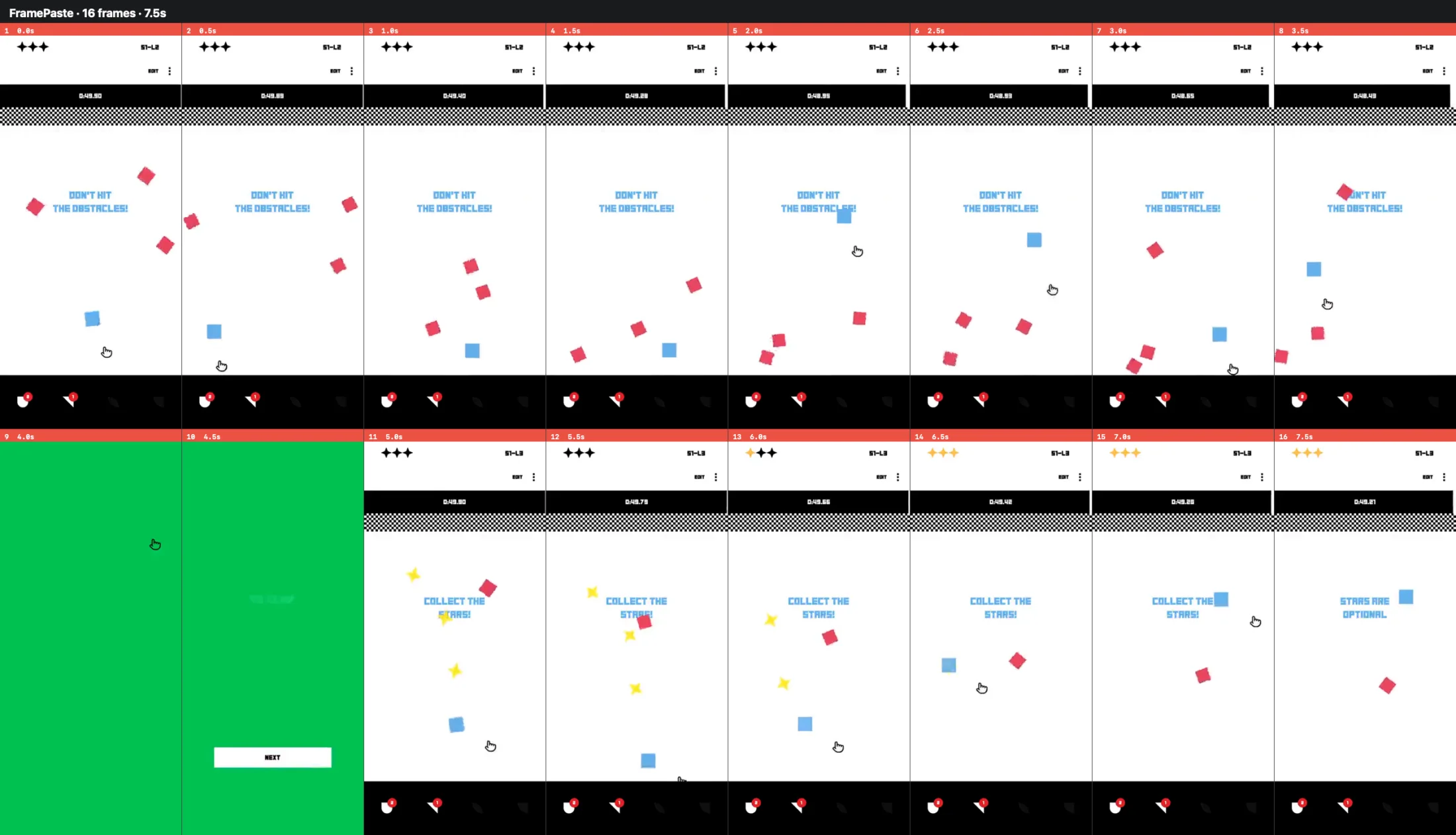
> [Image #1] What is happening in these frames?
● Frames 1-8 (0.0-3.5s), level S1-L2. The prompt reads "Don't hit the obstacles!". The blue cube zigzags across the playfield, dragged by the hand cursor, while the red diamonds drift around it. In frame 5 the cube overlaps the prompt text, and in frame 8 a red diamond clips it. The timer runs from about 0:49.9 down to 0:48.4.
● Frames 9-10 (4.0-4.5s), between levels. A solid green completion screen. By 4.5s a NEXT button is visible and the old text is fading out.
● Frames 11-16 (5.0-7.5s), level S1-L3. The prompt says "Collect the stars!" and the cube goes after the yellow stars. The first header star turns gold in frame 13 and all three are gold by frame 14. In frame 16 the prompt changes to "Stars are optional".
020.5s
How it works
- ⌥⌥1
Start a session
Double-tap ⌥. The pill shows Watching. Frames are only captured while you record.
- ⌘2
Record the moment
Hold ⌘ to capture only while held, or tap ⌘ once to start and again to stop. Reproduce the problem.
- ⌥3
End and copy
Press ⌥. The frames become a numbered grid on your clipboard. A longer recording fills up to five grids by default.
- ⌘V4
Paste into any AI
Cmd+V into Claude, Cursor, ChatGPT, anything that takes an image. If an app takes one image at a time, the next Cmd+V pastes the next grid.
Works with computer use, not instead of it
- 1Let the agent build, run and verify. It is good at that.
- 2When something is off in motion or timing, record it yourself: ⌥⌥, hold ⌘, ⌥.
- 3Paste the grid. The agent points at the exact frame, fixes it, and verifies again.
031.0s
The part only you can show
Agents with computer use do most of the work now. They build, run, click and verify. You are the judge. Four things only you can show:
- #01Your gesture. The drag, the swipe, the timing of your hands.
- #02Your game. The agent can't play it the way you do.
- #03Your data and session. Your logged-in account, your files, your setup.
- #04What feels right. A 0.3s stutter or a wrong easing is judged by eye.
FramePaste is how you hand that moment to the agent.
041.5s
See it in use
Short, real situations. Each one is a single hold, release, paste.
Using it live, hands on the keyboard
A real session, start to finish, filmed from my point of view.
A whole run, in one paste
TickTap, the game I build. This clip is what the grid above was cut from.
A transition that feels off
Hold, release, paste. The agent reads the easing frame by frame.
“Make it feel like this”
Show a reference motion instead of describing it in words.
052.0s
Why you can trust it
Nothing runs in the background
The capture stream starts with a session and stops when it ends. No always-on recording.
Fully local
Frames are processed on your Mac and never uploaded. They leave only when you paste them.
Online only for your key and updates
The app runs in the macOS sandbox. It goes online for two things: activating your license key once and checking for updates. Frames are never sent anywhere.
Always visible
The pill shows whenever it is watching or recording, and macOS shows its own screen-recording indicator in the menu bar. You always know.
No account, no telemetry
No sign-up and no analytics inside the app.
Any AI that takes an image
Each grid is a normal image on your clipboard. Paste it wherever images work.
Honest limits
Read this before you buy, or just try it: the first 7 days are free. It is a precise tool, not a magic one.
- +Interval capture, not smart detection. Every 1s, 0.5s, 0.2s or 0.1s. Press ⌃ during a session to switch.
- +Up to 16 frames per grid and five grids (80 frames) per recording by default, adjustable in the menu. Capture stops automatically at the limit.
- +Images only. No video, no audio.
- +Made for motion and timing. For a still, ⌘⇧4 is enough.
- +Mac only for now. Needs macOS 14 or later.
- +Needs Screen Recording permission.
062.5s
Pricing
$9
- ✓ The app, macOS 14 or later
- ✓ All four capture speeds: 1s, 0.5s, 0.2s, 0.1s
- ✓ Up to 80 frames per recording, in numbered grids of 16
- ✓ One key for up to 3 of your computers
- ✓ Free updates for every 1.x version, installed by the app
- ✓ No account, no subscription
Not sure yet? Try it free for 7 days first. No card, no account. Download the free trial →
VAT or sales tax is added at checkout where it applies.
Refund within 14 days. Email support@framepaste.com and you get your money back.
073.0s
Questions
How does the free trial work?
Download the app and use all of it for 7 days. No card, no account, no sign-up. After that it still opens and asks for a license key, which you get by email when you buy.
Why does it need Screen Recording permission?
macOS requires it for any app that captures the screen. FramePaste uses it only during a session you start, never in the background. Frames never leave your Mac until you paste them: the app goes online only to activate your license key once and to check for updates. The hotkeys are modifier-only, so no Accessibility permission is needed.
Is the app signed and notarized?
Yes. It is signed and notarized by Apple, so it opens without Gatekeeper warnings.
Does it work with Claude, Cursor and ChatGPT?
Yes. With any tool where you can paste an image, including Claude, Cursor and ChatGPT.
What if one grid isn't enough?
A longer recording fills up to five grids of 16 frames by default (adjustable in the menu). Apps that accept files, like VS Code, get all of them in one paste. Apps that take one image at a time get them one Cmd+V after another, and the pill shows which one is next.
What about updates?
Every 1.x version is free. The app checks for updates and installs them itself.
Windows or Linux?
Windows is in the works, and the key you buy now will cover it too. No Linux plans.
What happens after I pay?
Stripe emails you a receipt, and your license key arrives from support@framepaste.com within a minute. In FramePaste, choose Enter License Key in the menu bar and paste it.
What if I lose my key?
Enter your email at framepaste.com/recover and it is sent again. Or write to support@framepaste.com.
Can I get an invoice?
Stripe sends a receipt. If you need an invoice with company details, write to support@framepaste.com.
How do I reach you?
Email support@framepaste.com. I answer myself.
Show your AI what just happened.
Free for 7 days. Then $9 once. 14-day refund.